WooCommerce Flodesk Integration Guide
This plugin integrates WooCommerce with Flodesk to automatically synchronize customers who have opted in at checkout as subscribers, including purchase data for more targeted email marketing.
1. Installation
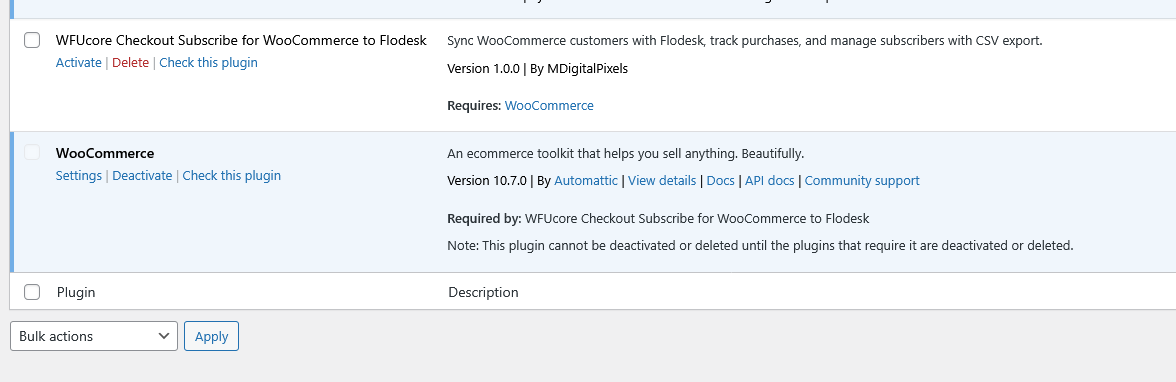 Screenshot: Plugin uploaded
- Upload the plugin to your WordPress site
- Activate the plugin from the Plugins menu
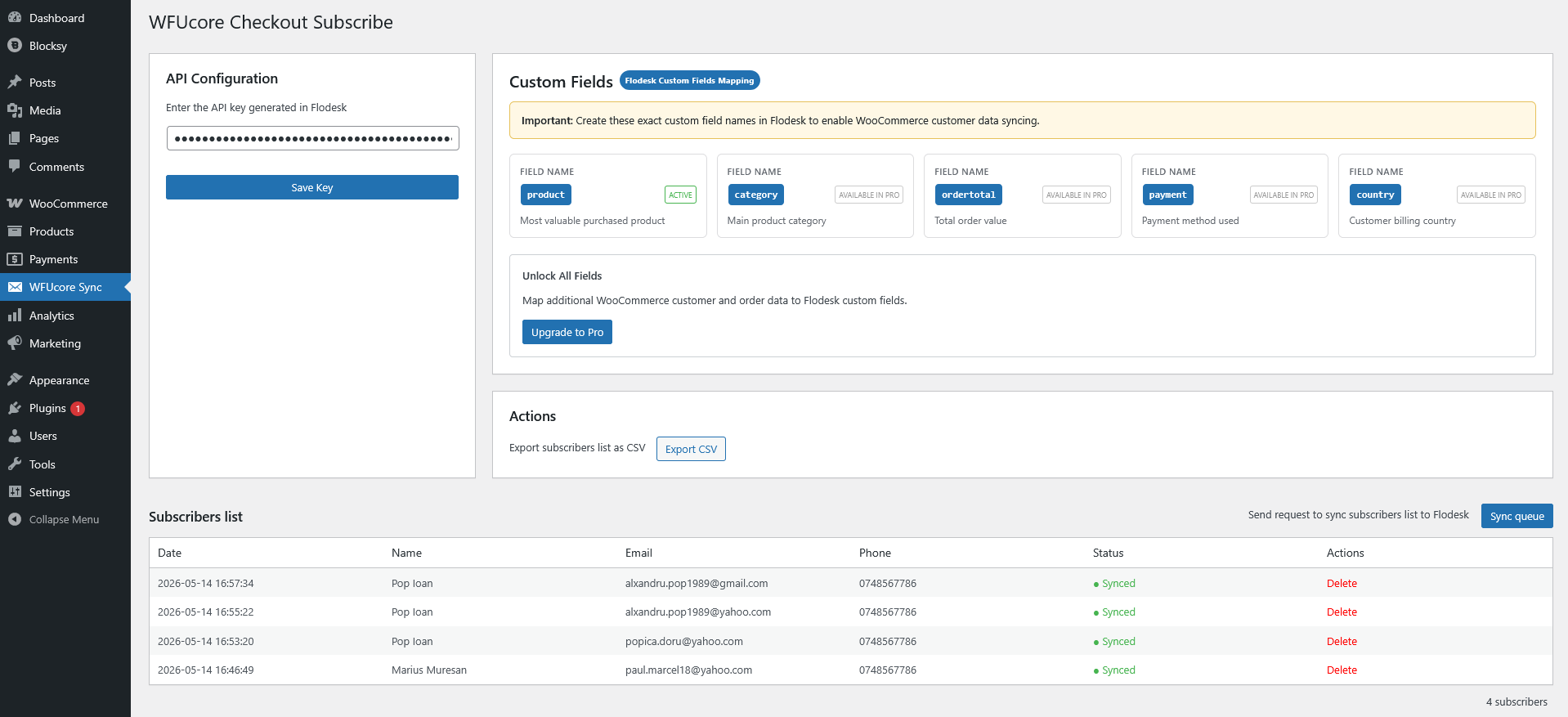 Screenshot: Plugin Dashboard
2. Connect to Flodesk (API Setup)
To start syncing subscribers, you need a Flodesk API key.
- Log in to your Flodesk account
- Go to Settings → Integrations → API
- Generate a new API key
- Copy the key and paste it into the plugin settings "Api Configuration" panel then Save Key
👉 Official guide: How to generate an API key in Flodesk
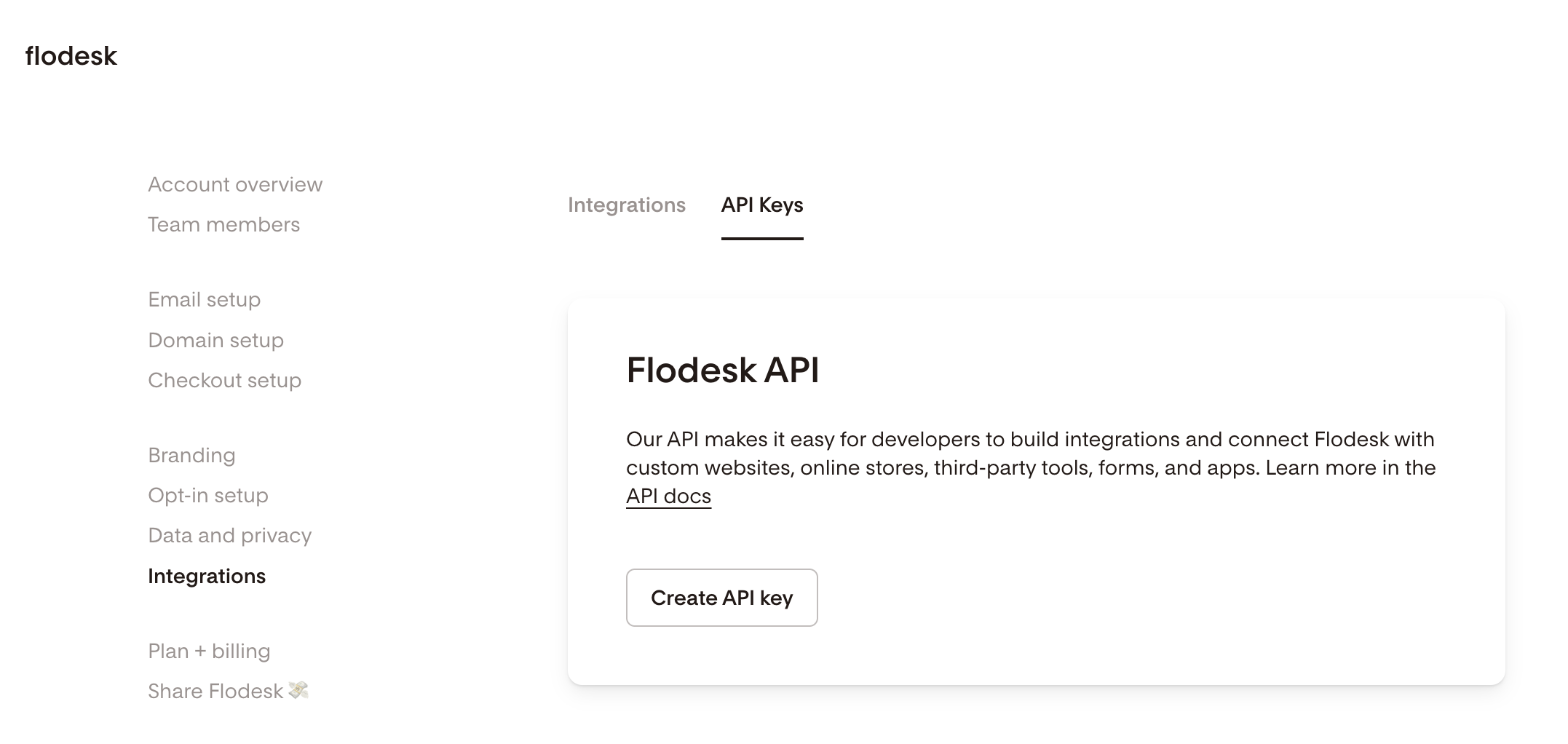 Screenshot: Flodesk API settings page
3. Custom Field Configuration
This plugin sends customer data to Flodesk using custom fields to improve email segmentation.
The Pro version extends this functionality by sending additional order informations, allowing for more advanced and targeted segmentation in Flodesk.
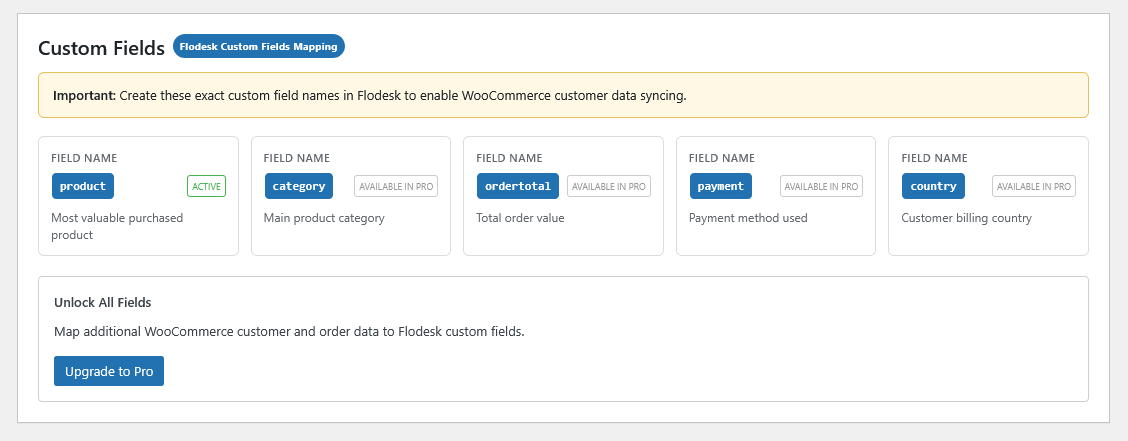
Screenshot: Showing WooCommerce data fields that must be created as custom fields in Flodesk for proper synchronization.
- Go to your Flodesk dashboard, click on Audience
- Open any subscriber profile, and then click Segments and data
- Scroll down and click Add custom field
- Add the name of your custom field. (example:
products) to store purchased products. Select Save - Enter the same field name in the plugin settings
- Save the configuration
⚠️ Field names are case-sensitive and must match exactly in both Flodesk and the plugin settings.
Custom field names must use lowercase characters only, with no spaces. Use underscores for separation (e.g. order_products).
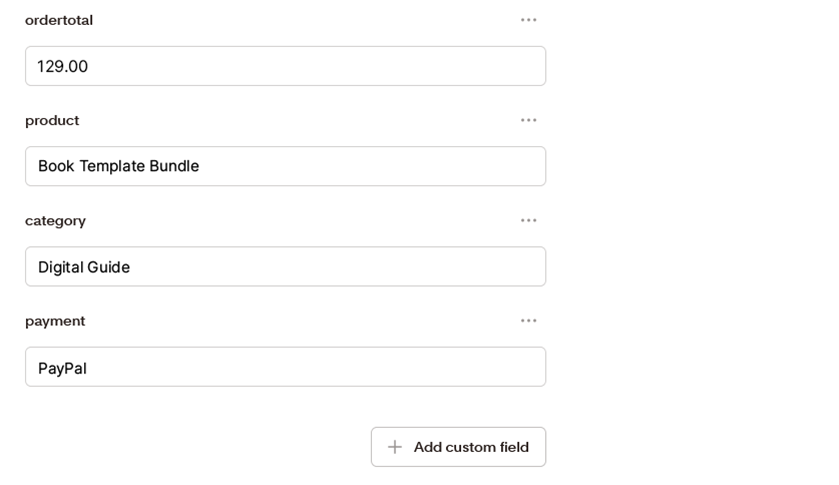 Screenshot: Creating custom field in Flodesk
4. Customer Subscription at Checkout
A subscription checkbox is automatically added to the WooCommerce checkout page.
- Customers can opt in to your newsletter
- If checked, their data will be saved and sent to Flodesk
- Customer and Order data is sent as (custom field) for advanced and targeted segmentation
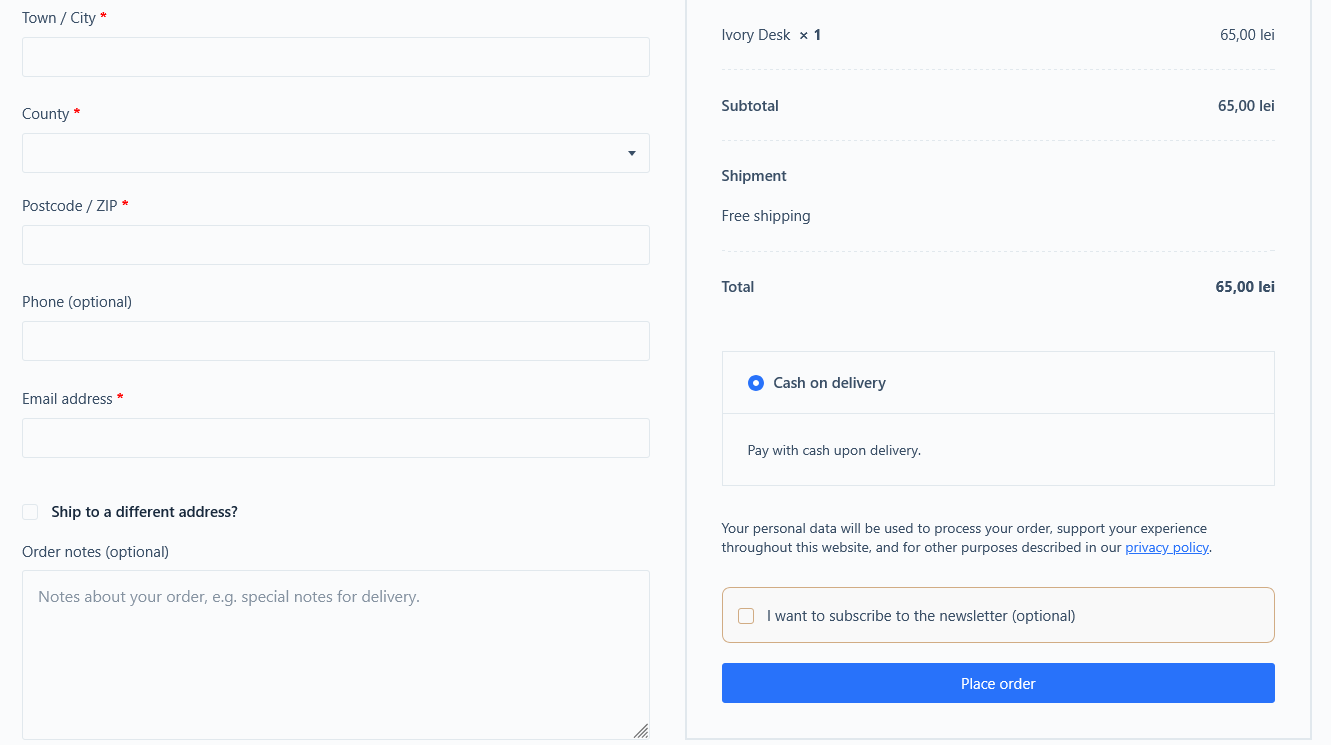 Screenshot: Subscribe checkbox option at checkout
5. Sync Subscribers
There are two ways subscribers are synced:
- Automatic: Immediately after checkout
- Manual: Using the “Sync Queue” button
If a sync fails, the subscriber remains in the queue and can be retried at any time.
⚠️ Important: A “Synced” status in this plugin only means that Flodesk accepted the API request. It does not always guarantee that the subscriber was successfully added to your Flodesk audience.
In some cases, Flodesk may reject or ignore the subscriber after accepting the request, for example:
- Duplicate email already exists
- Email does not meet validation rules
- Custom field is invalid or not recognized
- Account-level restrictions or internal filtering
Tip: If a subscriber appears as “Synced” but is missing in Flodesk, check your Flodesk dashboard and settings to confirm how the contact was processed.
If needed, you can retry sending subscribers using the “Sync Queue” button or export the data as a CSV file and import it manually into Flodesk.
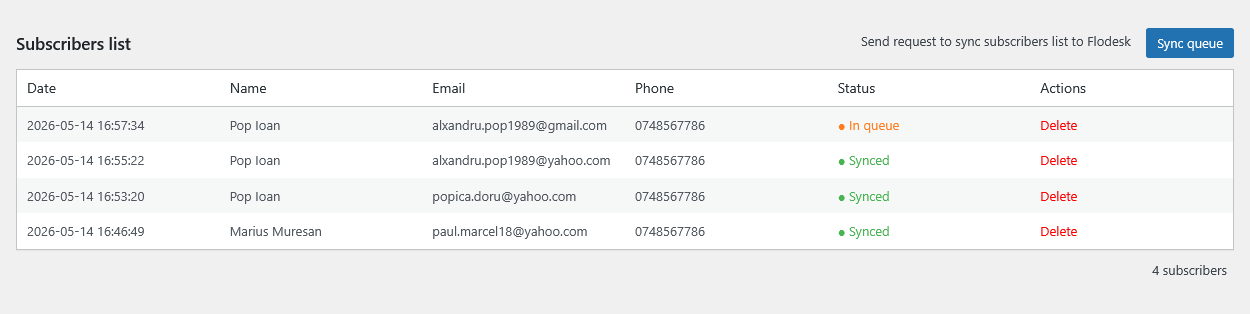 Screenshot: Manual Sync option
6. Manage Subscribers
All subscribers are stored locally in your database.
- View subscriber list in the admin panel
- See sync status (Synced / In Queue)
- Delete individual subscribers
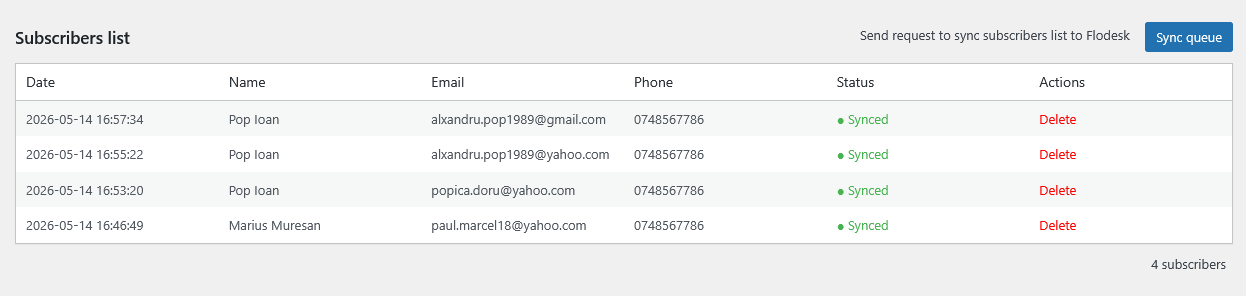 Screenshot: Subscribers list
7. Export Subscribers (CSV)
You can export all subscribers as a CSV file:
- Go to the plugin page
- Click Export CSV
The file includes name, email, phone, products, and sync status.
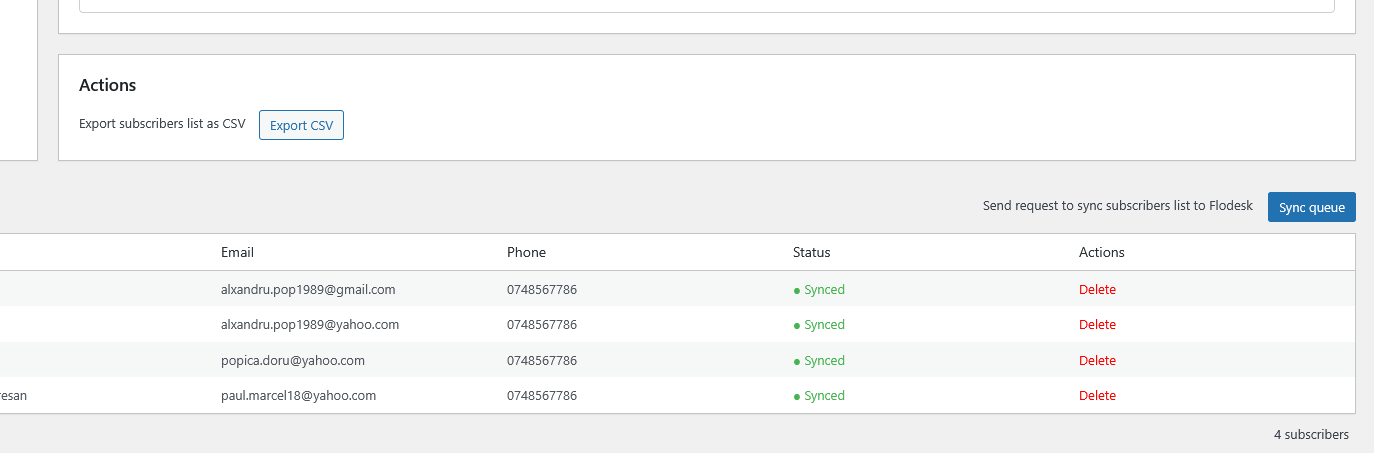 Screenshot: Actions panel, export CSV option
8. FAQ
Subscribers are not syncing
Check your API key and make sure it is valid.
Custom field is not working
Ensure the field exists in Flodesk and the name matches exactly.
Can I sync old subscribers?
Yes, use the “Sync Queue” button to send all pending subscribers.
9. Support
If you have any questions please send an email to contact@wfucore.com. We'd love to hear from you and we're happy to help!